
Introduction:
OneXtel is a leading CPaaS (Communication Platform as a Service) provider that offers seamless, end-to-end communication solutions. Our product offering includes channels like SMS, Voice, WhatsApp, Chatbot, RCS, and Email services tailored for businesses of all sizes.
Prerequisites :
You should have an active OneXtel Aura account with associated API Key(s).
Note: To create a new account or in case of any queries and concerns related to the OneXtel account, kindly reach out to the OneXtel Support team at “ support@onextel.com ”
Install the Application :
Download and Install the OneXtel Application from the Shopify Marketplace.
The application will be placed in the Apps section for Stores Dashboard.
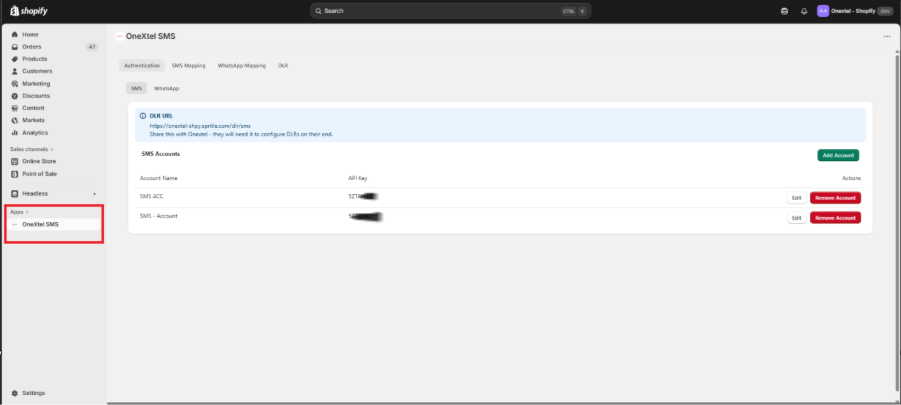
Account Setup :
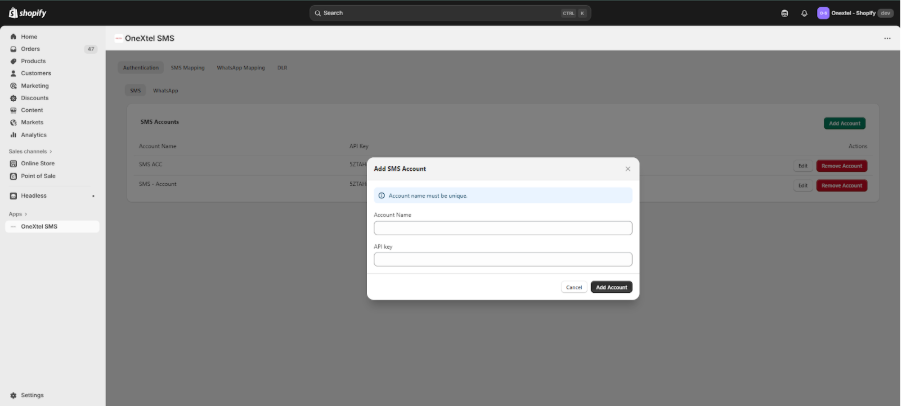
After installing the application, navigate to the Authentication tab and click on SMS.
Click on the Add Account, enter the Account Name and API key, and click on the Add Account.
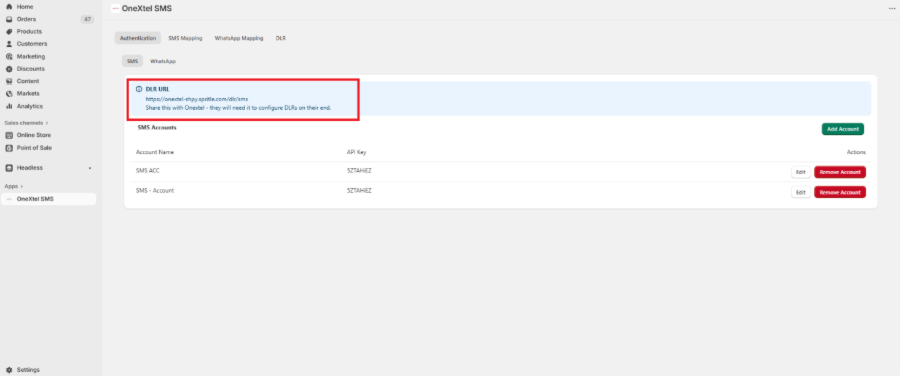
Please share this URL with the OneXtel team, so they can configure it to enable receiving DLR updates. Insert the above ss here bro
SMS Mapping :
- After Completing the SMS Authentication.
- Navigate to the Second Tab, Is SMS Mapping
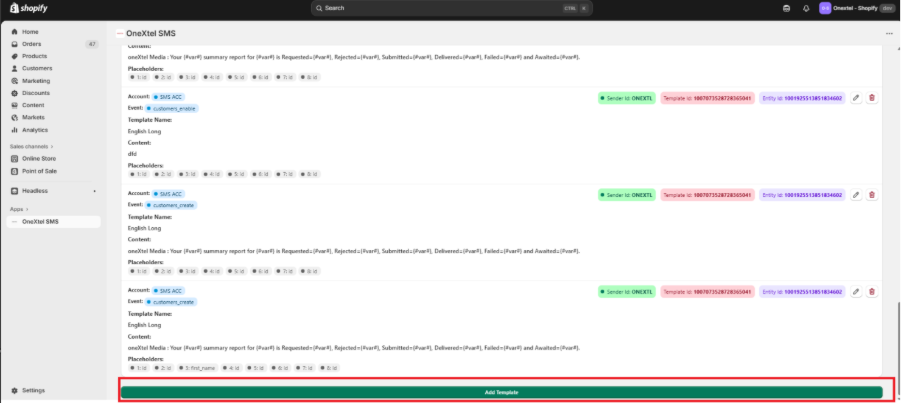
- Click to the add Template Button
- Select the Event
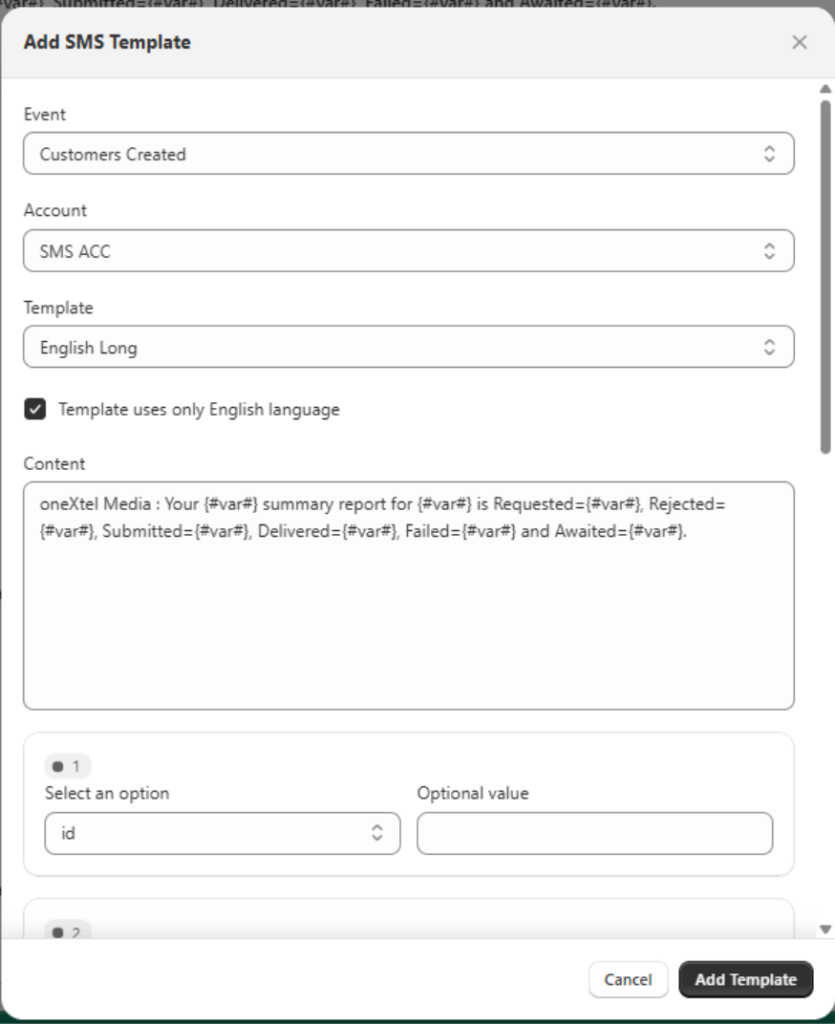
- Select the account you would like to use to send the SMS.
- Select the Template
- Enable the Check box, If Only Templates should be in English ( Optional )
- Select the Placeholder Values.
- Click the Add Template Button.
SMS Triggering & DLR Report :
- After completing the template Mapping
- Navigate to Store “ Online ”.
- Note: Ensure a customer account is already created with a phone number and email ID, and that an order creation trigger is set up to test the integration.
- Select the Order and Place the Order, SMS will be triggered
- Open the Store Dashboard and Apps.
- Navigate to the DLR Tab
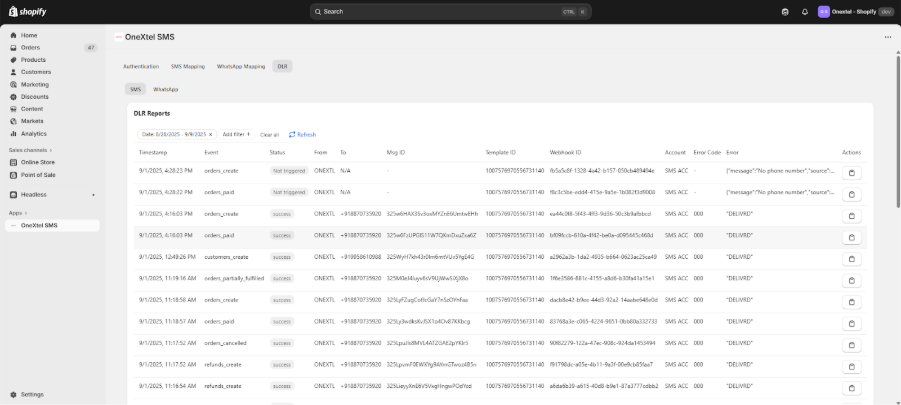
SMS Report, DLR will get updated with the Status of Delivered and sent.