
Introduction
OneXtel is a leading CPaaS (Communication Platform as a Service) provider that offers seamless, end-to-end communication solutions. Our product offering includes channels like SMS, Voice, WhatsApp, Chatbot, RCS, and Email services tailored for businesses of all sizes.
Prerequisites:
- You should have an active 365cx account with associated API Key(s).
- You should have a WABA ID, WABA Number, Template API Key, UserName, Password, Customer ID and Journey ID.
- Only approved templates can be used.
Note: To create a new account or in case of any queries and concerns related to OneXtel account, Kindly reach out to OneXtel Support team at “ support@onextel.com ”
Install the Application:
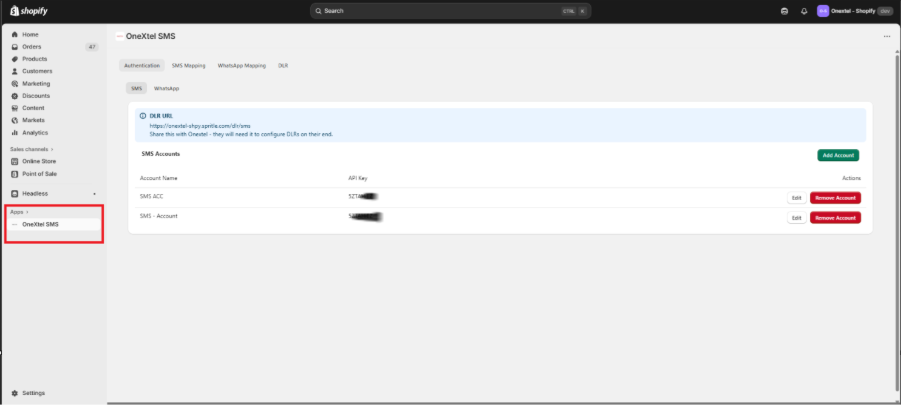
Install the OneXtel Application from the Shopify Marketplace.
The application will be placed in the Apps section for Stores Dashboard.
Account Setup:
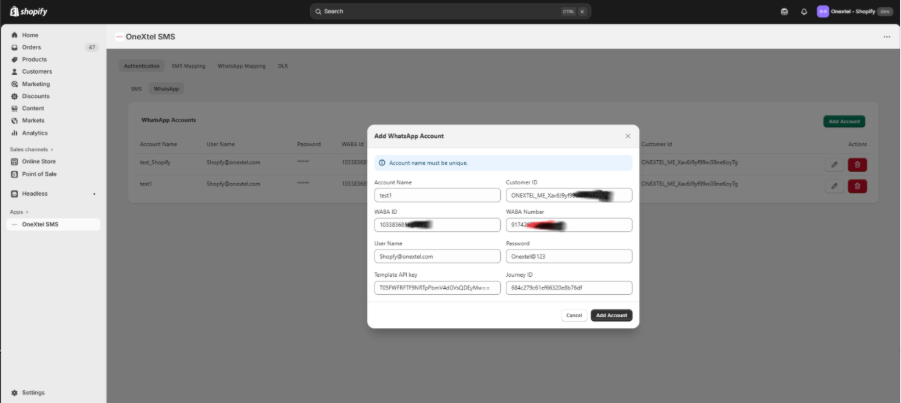
- After installing the application, navigate to the Authentication tab and click to WhatsApp.
- Click on the Add Account
- Enter and fill in the Account Name, Customer ID, WABA ID, WABA Number, Username, Password, Template API Key and Journey ID.
- Click on the Add Account.
WhatsApp Mapping:
- After completing the Configuration of the WhatsApp account.
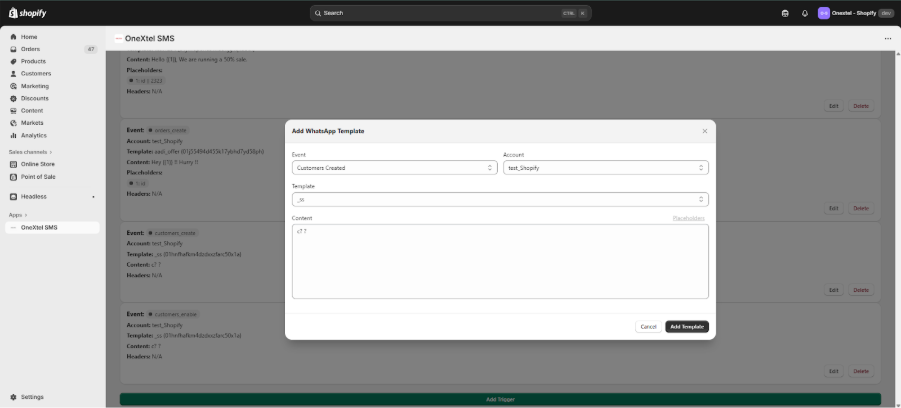
- Navigate to the WhatsApp Mapping
- Click on the Add Triggers
- Select the Event Type
- Select the account type you prefer for sending this message
- Select the Template, and Content will update automatically. Need Placeholders, kindly click on the Placeholder and select the value.
- Click on the Add Template button.
WhatsApp Triggering & DLR Report
- After completing the template Mapping
- Navigate to Store “Online”.
- Note: A customer account must already be created with a phone number and email ID. Also, ensure that a trigger for order creation has been added to test the integration.
- Select the Order and Place the Order, a WhatsApp Message will be triggered
- Open the Store Dashboard and Apps.
- Navigate to the DLR Tab.
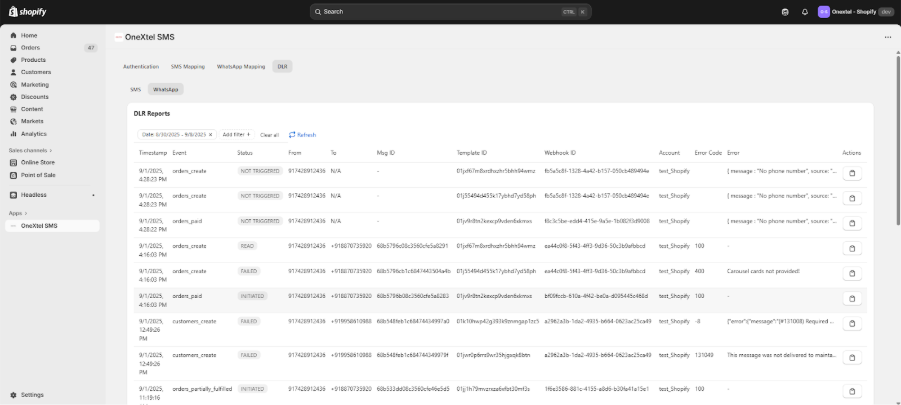
WhatsApp Report, DLR will get updated with the Status of Delivered, Sent, Failed, and Initiated.